There is nothing quite as stressful as watching the countdown timer tick down on an online college assessment. You have 30 seconds left, you are staring at a massive paragraph-long Multiple Choice Question (MCQ), and the options are all intentionally confusing.
When you're taking an open-book online quiz, your biggest enemy isn't the material—it's the clock.
Trying to frantically type a long question stem into Google or an AI homework helper wastes precious minutes. And if the quiz platform disables text highlighting, you are forced to retype everything manually.
If you are wondering how to find answers to online quizzes faster without losing focus, you need a smarter strategy. Here is how top students are using SnapIQ, the ultimate MCQ solver, to completely eliminate typing and tackle online assessments with zero wasted time.
The Problem: Why Standard AI Fails on Timed Assessments
Online testing platforms are designed to make finding answers difficult. Standard study tools fail because of:
- Disabled Text Selection: You literally cannot highlight the text to copy it.
- Complex Formatting: MCQs often include tables, formatted code snippets, or inline symbols that break when typed into a standard search bar.
- The "Alt-Tab" Penalty: Switching between tabs to search for step-by-step quiz answers breaks your focus and eats into your time limit.
The Solution: AI Screen Capture for Students
Instead of fighting the platform's restrictions or typing frantically, the fastest method to solve multiple choice questions is using a tool that reads the screen exactly as you see it.
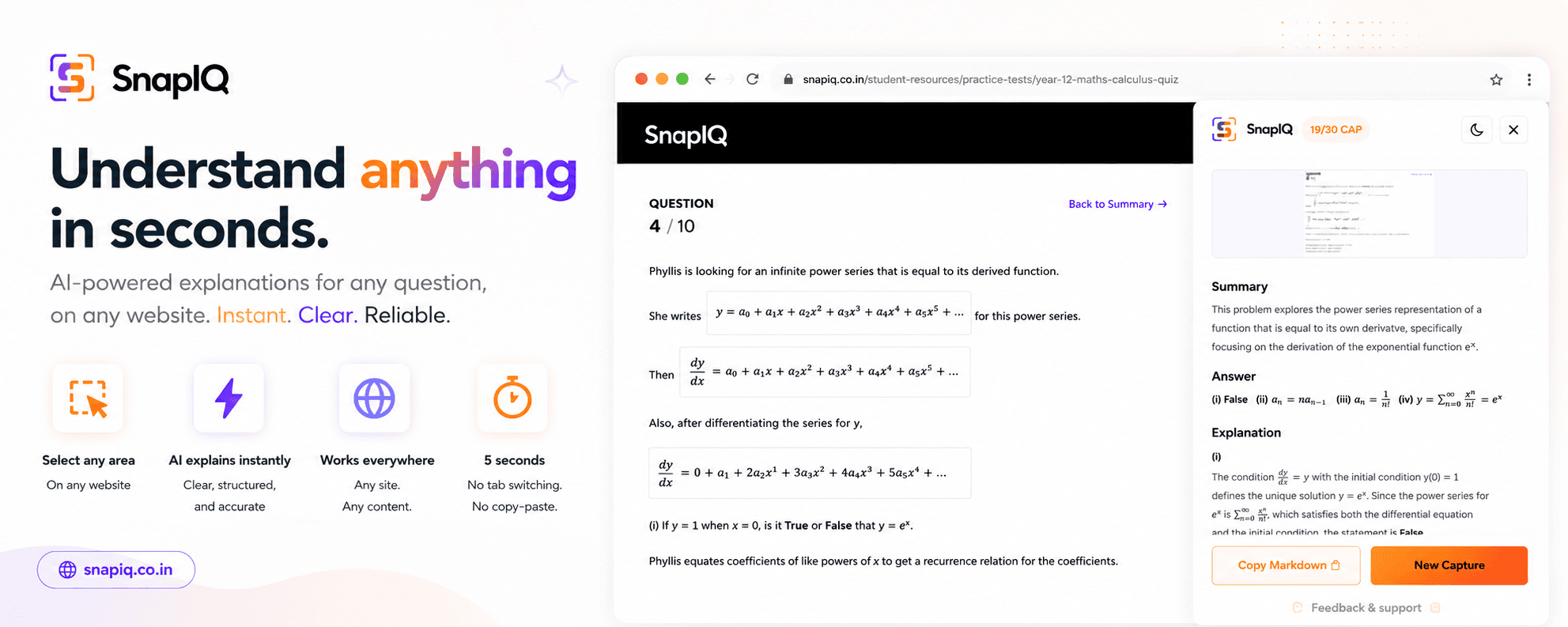
SnapIQ is a Chrome Extension that acts as an intelligent open book exam helper. When you hit a roadblock on a quiz, you don't need to type anything. You just draw a box over the question, and the AI provides the answer and the explanation right there.
Strategy 1: The "Image to Text" Quiz Bypass
When you encounter a quiz that won't let you select the text:
- Keep the quiz open. Do not switch tabs.
- Activate SnapIQ from your toolbar.
- Drag a box over the entire MCQ, including all the options.
- SnapIQ instantly acts as an image to text quiz solver, identifying the question and highlighting the correct option in its sidebar.
Strategy 2: Tackling Paragraph-Long Scenarios
Many nursing, law, and business assessments use "Scenario-Based" MCQs that are a paragraph long.
If you try to type a 100-word scenario into a search engine, you've already lost 2 minutes. By using SnapIQ to visually capture the entire block of text, the AI reads the whole scenario in milliseconds and provides a clear rationale for the correct choice.
Strategy 3: Understanding the "Why" Instantly
Getting the right answer is important, but you also need to understand the logic. SnapIQ doesn't just spit out "C is the answer." As a dedicated AI homework helper, it provides a rapid, step-by-step breakdown of why C is correct and why the other options are distractors.
Reclaim Your Quiz Time
When you are taking a timed assessment, every second counts.
By integrating a visual AI tool into your study routine, you remove the friction of typing and formatting. You stop worrying about the ticking clock and start focusing on the actual content of the test.
Ready to ace your next online assessment?